Make a Scanned PDF Searchable Without Retyping It
By Aldridge Dagos, operations software engineer

A PDF can show a perfectly readable page while offering nothing useful to its search box. If the page contains only an image, the viewer needs another representation of the words before it can search them as text. Optical character recognition supplies that representation.
You do not have to retype the whole document to make a scanned PDF searchable. You do have to check whether the recognition produced the words you care about. A name that looks right on the scanned page may be wrong in the text layer underneath it, which is an awkward discovery when you later depend on search to find that name.
The short version: Keep the original scan, open a working copy in NAPS2 and enable OCR with the correct language. Save a separate searchable PDF. Search for several words you can see, then copy a short passage into a plain-text editor and compare it with the page. Inspect names, reference codes and amounts deliberately. If recognition is poor, improve the image or change the relevant OCR settings and rerun it. Searchable does not mean accurately transcribed or fully accessible.
The NAPS2 OCR instructions describe this image-to-searchable-text workflow. It is an established capability rather than a reason to depend on a newly released feature. The 7.5.3 release provides an older product reference. The exercise prepared here on October 29, 2026 is new, and its OCR output was made with the local Tesseract command-line tool. It is not presented as an executed NAPS2 desktop session.
How can you tell whether a PDF needs OCR?
Open the document and try to select a short line of text. Then search for a distinctive word you can plainly see. If selection treats the whole page as an image and search finds nothing, an image-only page is a likely explanation. It is a starting diagnosis, not a complete inspection of every object in the PDF.
Some PDFs mix page types. A cover may contain selectable text while the following pages are scanned images. Another file may already have a text layer, but the layer is inaccurate or out of alignment. Test more than the opening page before deciding what work is necessary.
The original image-only page (PDF) is deliberately simple. It was made from an authored image, not from a physical scanner or somebody’s private paperwork. The companion OCR-searchable companion (PDF) adds OCR text. Open both and search for Marigold, a word printed in the exercise.
This gives the test a known answer. The document is fictional, so you can inspect it without deciding whether a real person’s records belong in an experiment. It also gives you a clear baseline before adding problems such as skew, faint ink or a second language.
I would keep that baseline small. It is easier to understand one page that behaves differently before and after OCR than a large folder whose results are already difficult to explain. The aim is a repeatable check you can carry into your own work.
Two representations 01
The page can look unchanged while search gains text.
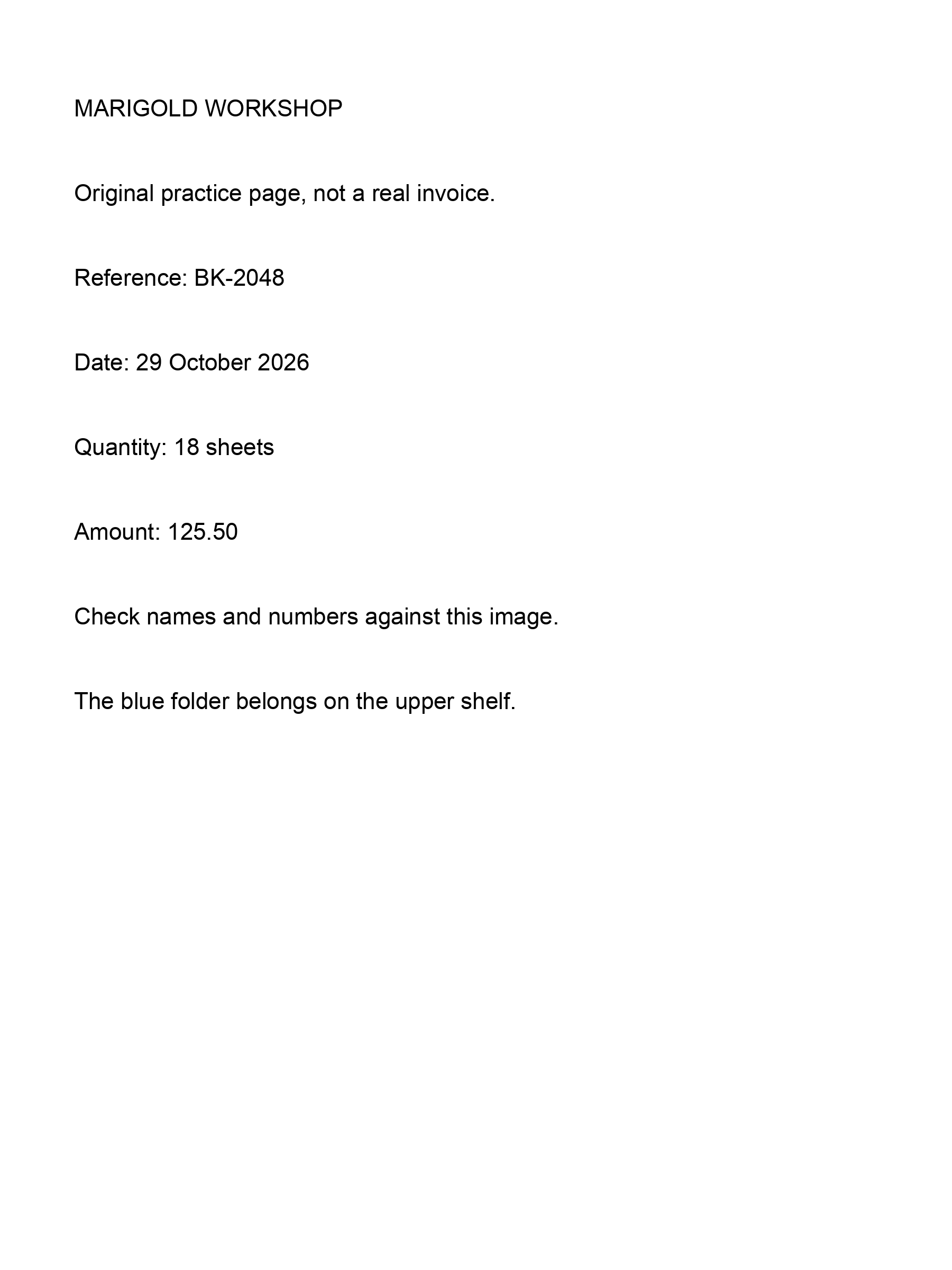
OCR produces a second representation.
MARIGOLD WORKSHOP
Reference: BK-2048
Quantity: 18 sheets
Amount: 125.50
Search found a word. That does not verify every name or number.
How do you make a scanned PDF searchable in NAPS2?
Use the official NAPS2 downloads and select the package appropriate to your operating system. The current download page may show a version newer than the historical baseline. Check its requirements rather than assuming that a package for another machine will run on yours.
Import your working PDF or scan the pages into NAPS2. Open the OCR setup using the OCR control, or the corresponding Tools command on a Mac. The project’s instructions describe downloading the recognition language when it is first needed. Select the language actually present in the pages.
Enable the option to make PDFs searchable using OCR. Then save to a new filename. Giving the output a clear suffix, such as -searchable, helps you avoid mistaking the untouched original for the processed copy during review. Keep the original available while you compare them.
If you prefer a command-line route, NAPS2 documents one in its command-line guide. With the application’s console command configured as described there, its existing-PDF example takes this form:
# Documented NAPS2 shape. Configure naps2.console for your OS first.
naps2.console -i original-scan.pdf -o searchable.pdf -n 0 --ocrlang eng
This is a documented command shape, not a claim that the application was installed or run on every platform for this article. It saves the searchable copy under a separate name so that the original remains available for comparison.
Before processing a collection, carry out the small test in the next section. A convenient batch operation can also repeat the same wrong language or poor input condition across every file you feed it.
How do you check that the recognised text is useful?
Start with a word in the middle of a page, not only a large heading. Search for it, then look at the highlighted location. Repeat the check with a name or code whose exact spelling matters. A successful search for an easy heading does not establish that the small print was recognised well.
Copy a short passage from the output into a plain-text editor. Compare it with the image. Look at punctuation and line order as well as individual characters. A page can look unchanged while the copied text puts two columns into an order nobody would read on paper.
On this simple prepared page, the OCR output retained the visible reference BK-2048, quantity 18 and amount 125.50. Check those fields against the image in the supplied PDF, then select or search for them in its OCR companion. These observations describe one generated page, not a universal accuracy score.
- Names: Check the whole name rather than accepting a nearby familiar word.
- Numbers: Compare amounts, dates and identifiers with the image. A plausible number can still be wrong.
- Reading order: Copy more than one line when the page has columns or side notes.
- Missing content: Look for a short paragraph or label that search never finds, rather than inspecting only what was returned.
The person finding a document benefits from useful search terms. The person relying on its contents benefits from knowing which fields were checked against the original. Those are related jobs, but they are not interchangeable. Finding the invoice quickly does not approve the amount on it.
What should you change when OCR is poor?
Return to the input before trying to repair everything by hand. Is the page crooked? Are letters touching? Did a photograph introduce a shadow down one edge? Are small characters represented by enough actual image detail to be distinguishable?
The Tesseract quality guide explains why skew, noise and page preparation affect recognition. Those are useful diagnostic categories even when you use a graphical application around the recogniser. A better image can change the problem the software is being asked to solve.
NAPS2 offers OCR settings and document-image adjustments described in its manual. Try one relevant change on a copy and compare the same difficult word again. If you change everything at once, an improved result will not tell you what made the difference.
| What you see | A useful next test | What to avoid assuming |
|---|---|---|
| Lines lean across the page | Straighten the page and rerun recognition | That another language model will fix geometry |
| Small text breaks into shapes | Improve the source capture where possible | That enlarging an already poor image restores lost detail |
| Words from another language fail | Check the selected recognition languages | That one successful English heading covers the page |
| Old errors stay unchanged | Determine whether the PDF already contains text | That NAPS2 replaced every existing text layer |
That last case is easy to miss. NAPS2’s OCR documentation says imported pages that already have text are left alone by its normal rule. Do not keep rerunning the same import and interpret an unchanged result as a fresh recognition failure. Establish what the page already contains, then use a documented route appropriate to that case.
This guide does not promise an in-place editor for every recognised word in NAPS2. If the job requires a corrected transcript, create and review that transcript as a separate deliverable. Keep the relationship to the source page clear.
How can you compare the two example PDFs?
Open original-scan.pdf and searchable-sample.pdf in your PDF viewer. Search both for Marigold, a word visible on the page. Then copy a short passage from the searchable version into a plain-text editor and compare it with the image.
The original contains the page image without meaningful extracted words. The companion adds an OCR text layer. It was prepared with Tesseract, rather than by executing the NAPS2 desktop steps. The difference lets you inspect what OCR adds before processing your own working copy in NAPS2.
One clear fictional page cannot measure recognition quality across photographs, handwriting or several languages. Repeat the same search-and-copy check on your own saved output, using the viewer the recipient intends to use.
The distinction between reliable records and a live indication applies neatly here. The page image and the recognised text can disagree. Keep the image available when a consequential field needs to be resolved.
What does searchable still leave unfinished?
Searchable text is useful, but it is not a complete accessibility treatment. Reading order and document structure matter. A user navigating through assistive technology needs more than a layer that happens to contain the expected word. Do not label the file fully accessible solely because a search now works.
Privacy needs its own decision too. A previously image-only document may become much easier to search, copy and index after OCR. That can be exactly what you want, but it changes how easily somebody can locate a name or identifier inside it. Keeping unnecessary sensitive copies out of a workflow still matters after the recognition succeeds.
Nor does OCR erase information. If you need to remove a private passage, recognition and hiding are different operations. A black rectangle, a crop and a text layer can interact in ways that deserve a separate saved-file inspection. Do not use the appearance of a processed page as proof that unwanted content has disappeared.
For a personal archive, a checked searchable copy may be enough. For a document someone will act on, the critical fields deserve review against the source. Give the person receiving it that distinction plainly. The fastest search is useful only when it leads them to a document they can read with the right degree of confidence.
Keep the original beside the answer when the spelling matters.
Frequently asked questions
Can NAPS2 make a scanned PDF searchable for free?
NAPS2 describes its application as free and provides OCR instructions on its official site. Choose the installer for your platform and check its current requirements. The included exercise does not require a paid service or upload a document for recognition.
Why can I see a word but not find it with search?
The visible page may be an image without recognised text, or the existing text layer may contain a different spelling. Test a few words and copy a passage to inspect the recognised version. Do not infer the contents of the text layer from the image alone.
Does OCR change the original wording on the page?
The searchable representation can differ from what the page image shows. That is why names and numbers need comparison. Preserve the original and save a separate processed copy so you can distinguish the source from the recognition result.
Can I fix every OCR mistake directly inside NAPS2?
This guide does not establish that capability. It uses documented image and OCR settings to improve the input and rerun recognition. If you need a manually corrected transcript, produce and review it separately rather than implying that a searchable PDF is already an exact transcription.
Was the downloadable sample made with a physical scanner?
No. It is an authored image-only page prepared on October 29, 2026, with a locally generated Tesseract OCR companion. It gives you known text for inspection without using private records. It is not a benchmark of a scanner or a verified NAPS2 desktop session.
Publication details
This article belongs to the editorial calendar. First published .